
This article provides a guide for how to configure Softaculous automated backups with cPanel Shared hosting accounts.
How to Configure Softaculous Automated Backups
To configure Softaculous automated backups for one of your existing hosted applications, follow the steps below:
- Login to cPanel account.
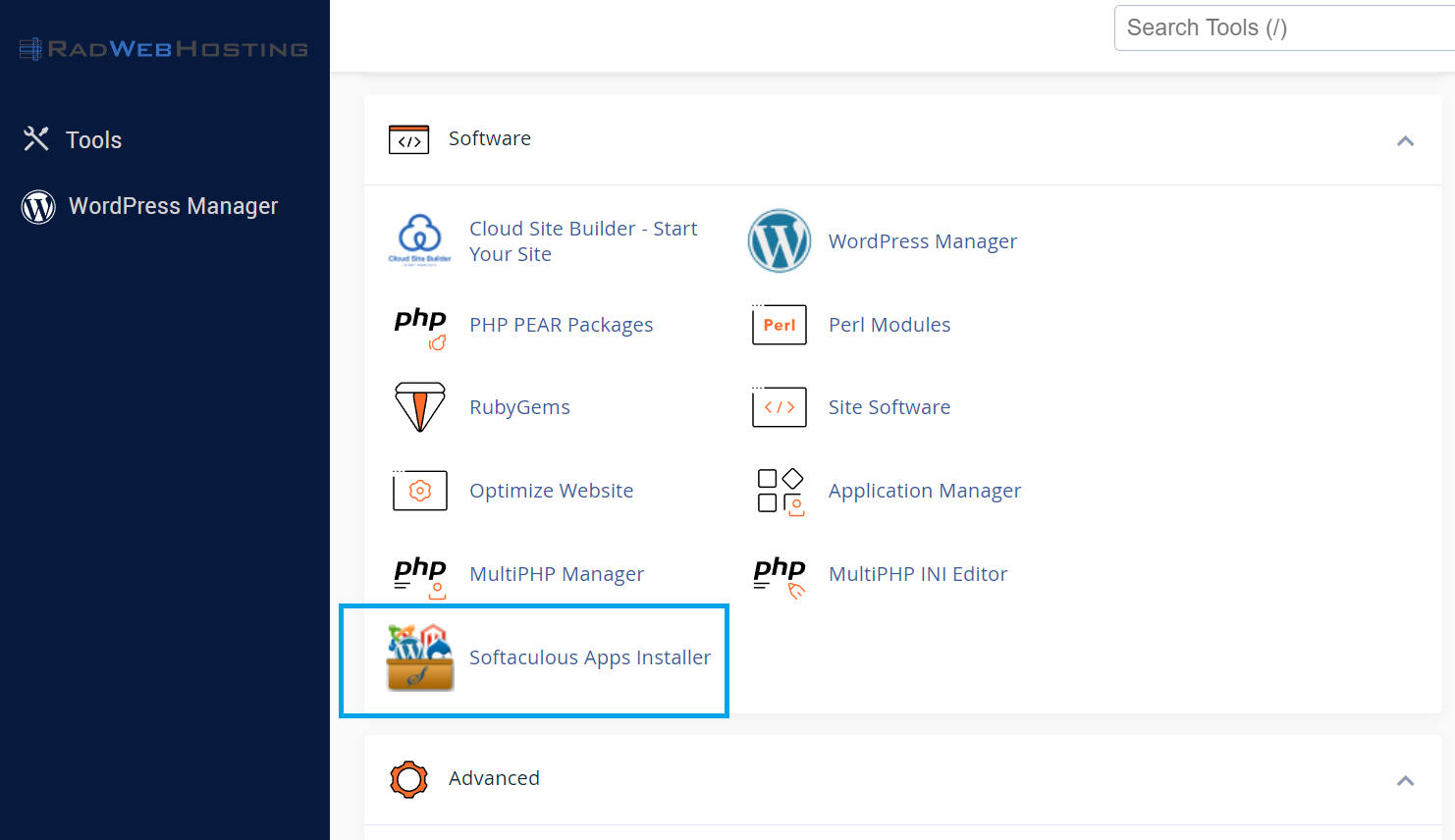
- Navigate to Softaculous Apps Installer in Software section
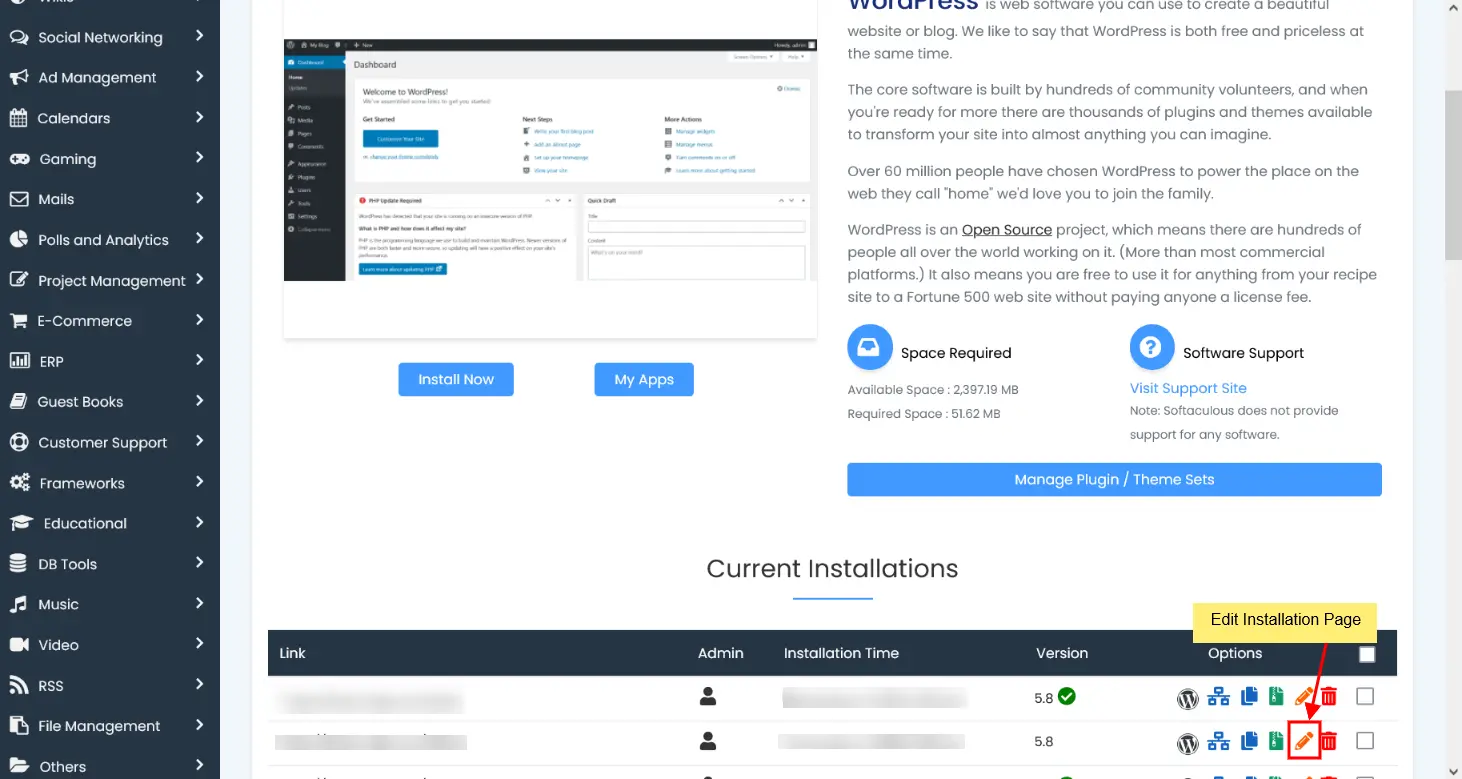
- Locate the existing installation for which you are configuring automated backups and click the pencil icon to edit.
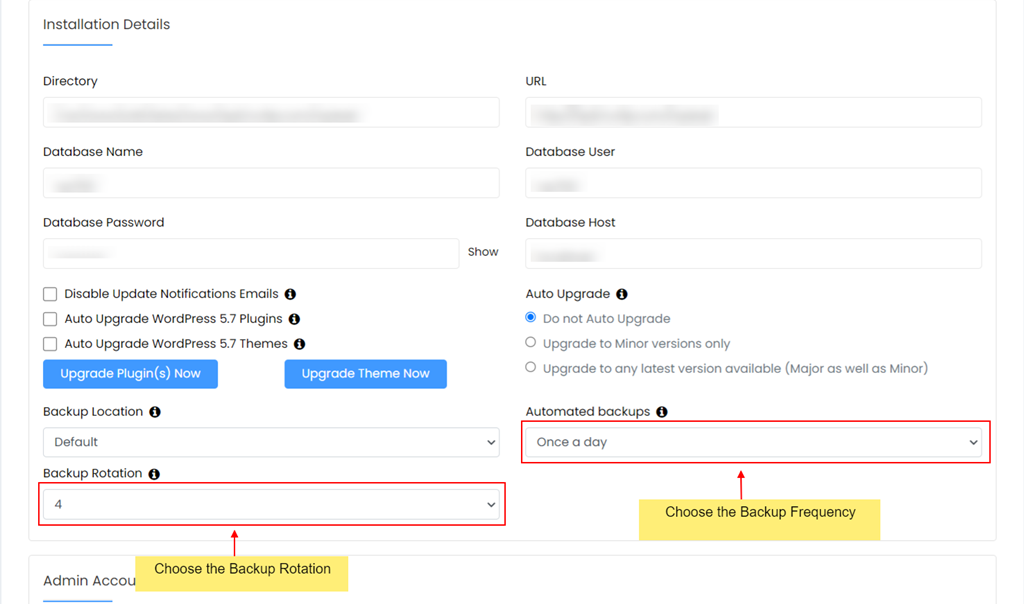
- Configure the installation's backup settings according to your preference.
- Click "Save Installation Details" button to save your automated backup settings.
Conclusion
You now know how to configure Softaculous automated backups for your an application hosted on your cPanel shared hosting account.
You're going to be a pro before you know!
